How to Remove Text From a Video in CapCut (2026 Guide)
Remove text in CapCut by deleting the layer, cropping or covering it, or with AI Remove, which we found needs CapCut Pro. Options for burned-in captions.
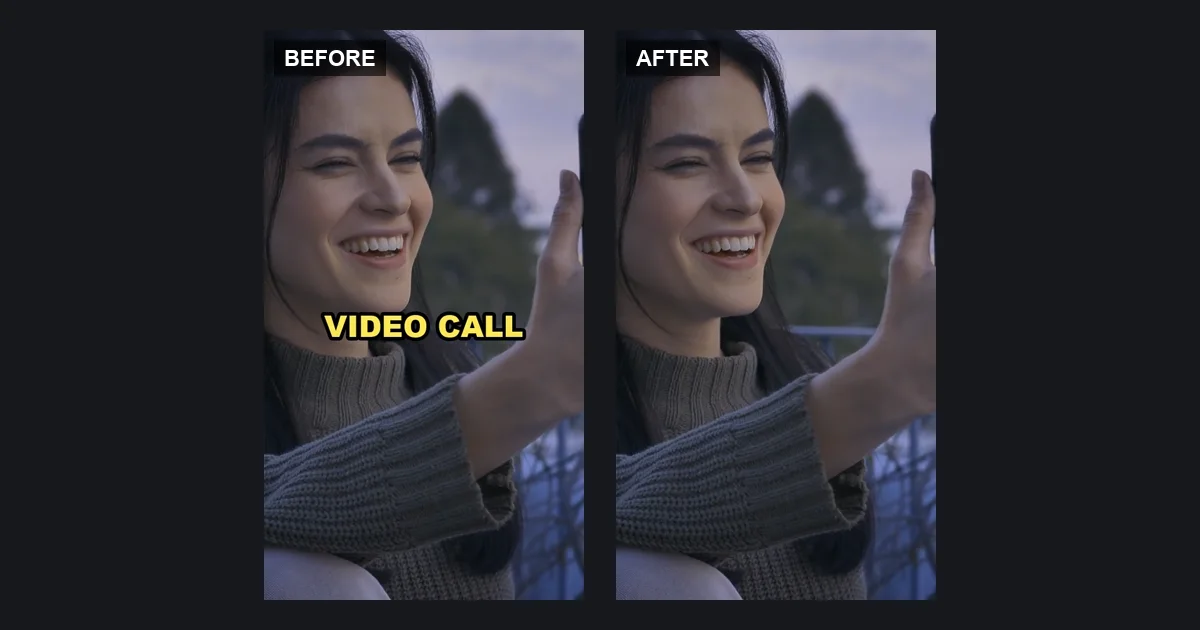
How you remove text in CapCut depends on whether CapCut still sees it as text. If it is a text or caption layer in your project, delete it and export again: the original picture comes back untouched. If it is burned into an imported video, like an exported TikTok or a clip someone sent you, it is part of the picture. Then you can crop it, cover it, or, with a Pro subscription to CapCut desktop, brush it out with AI Remove, which rebuilds the area behind it. Here is how each option works and where it struggles.
Only have the exported video and the captions have to go? Remove captions from your video online, then bring the clean clip back into CapCut.
Is your text still editable in CapCut?
Open the video in CapCut and click on the text in the preview.
- It selects a text or caption clip on the timeline. It's editable. Follow the first section below.
- Nothing gets selected, and the text is part of the video clip. It's burned in. This happens whenever you import a video that was exported with text, including your own earlier exports and anything saved from TikTok, Reels or CapCut templates.
Auto captions count as editable too, as long as you are in the project where you generated them. Once exported, they are pixels like any other text.
Remove editable text and captions in CapCut
These steps are for CapCut desktop.
- Open the project that contains the text.
- On the timeline, select the text or caption clips you want to remove. For one clip, click it. For several, drag a box around them in an empty part of the timeline, or hold Cmd and click each one. Auto captions are made of many short clips on their own track, so check that every one you want gone is highlighted.
- Press Delete.
Avoid Cmd + A here: it selects every clip on the timeline, including your video, so pressing Delete afterwards removes the video too. (Tested in CapCut 9.7.1 for macOS.) 4. Play through the video to check that no other text clip is left, then export.
You get the original picture back, with nothing to rebuild. If you still have the project, always do this first, even if it means re-adding some text you want to keep.
Burned-in text: your options inside CapCut
When the text is part of the imported video, you have four options in CapCut. The first three are free and hide the text; the fourth tries to rebuild what was behind it, and needs a subscription.
Crop it out
Use Crop (or scale the clip up) so the text falls outside the frame. This removes it cleanly when it sits at the edge, but you lose that part of the picture, and on vertical videos it often cuts into the subject.
Cover it with a sticker, a shape or a clean patch
Put a sticker, a colored shape or a new text box over the old text. On a static shot, a common trick is to take a freeze frame from a moment without text, crop it to the area, and lay it over the text. It holds up only as long as nothing moves behind it.
Blur or mosaic it
Add a blur or mosaic effect and mask it to the text area. The words become unreadable, but the smeared box is obvious. Viewers notice the patch.
Brush it out with AI Remove (desktop, Pro)
CapCut's own tutorial describes AI Remove in the desktop editor, and we found it in the same place in CapCut 9.7.1 for macOS on November 6, 2026:
- Import the video and drag it onto the timeline.
- Click the clip on the timeline. In the panel on the right, open Video → Basic, scroll down to AI remove and choose Quick Brush.
- Adjust the brush size, brush over what you want removed, then click Remove and wait for processing.
- Export as usual.
When we tried to apply it with a free account, CapCut showed "Upgrade to Pro to use this feature": AI remove is only available to subscribers, and applying it to our 7-second test clip would consume 70 credits. The Pro plan offered 1,200 credits a month.
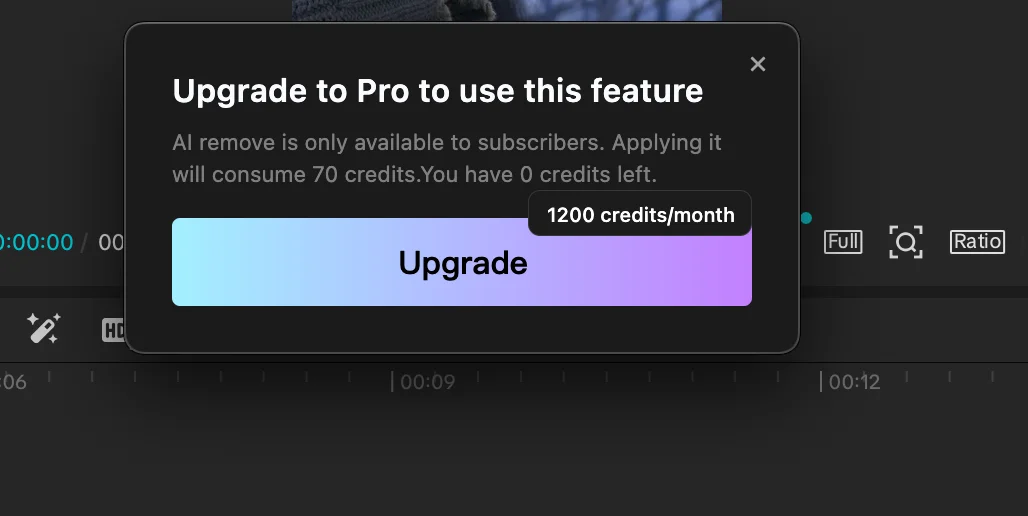 Prices, credit costs and plan limits can change, so check the prompt in your own copy.
We did not subscribe, so we have not tested the result on burned-in captions, including whether one brush stroke covers captions that change in the same spot. CapCut's tutorial presents AI Remove for removing objects and does not cover captions specifically. If you have Pro, try it on a few seconds of your clip first and check every caption change frame by frame.
Remove changing captions with a text remover, then finish in CapCut
If you don't have CapCut Pro, or AI Remove leaves traces on your captions, you can do just the text-removal step in an online video text remover and everything else in CapCut. On TextRemover.video you don't mark the text yourself: Subtitles mode detects caption lines across frames, and All text detects any text in the frame.
Step 1: Export the clip from CapCut
Export the clip that has the unwanted text as MP4 or MOV, at the highest quality. Each upload can be up to 60 seconds and 500 MB, so split a longer edit into sections first.
Step 2: Upload and pick a mode
- Subtitles for CapCut auto captions and caption templates that change every few words. It detects them across frames, so no boxes are needed.
- All text when there are captions plus a title, a hook line or a label elsewhere in the frame.
- Select area for one fixed element, like a title in a corner or a lyric band. Only the boxes you draw are rebuilt.
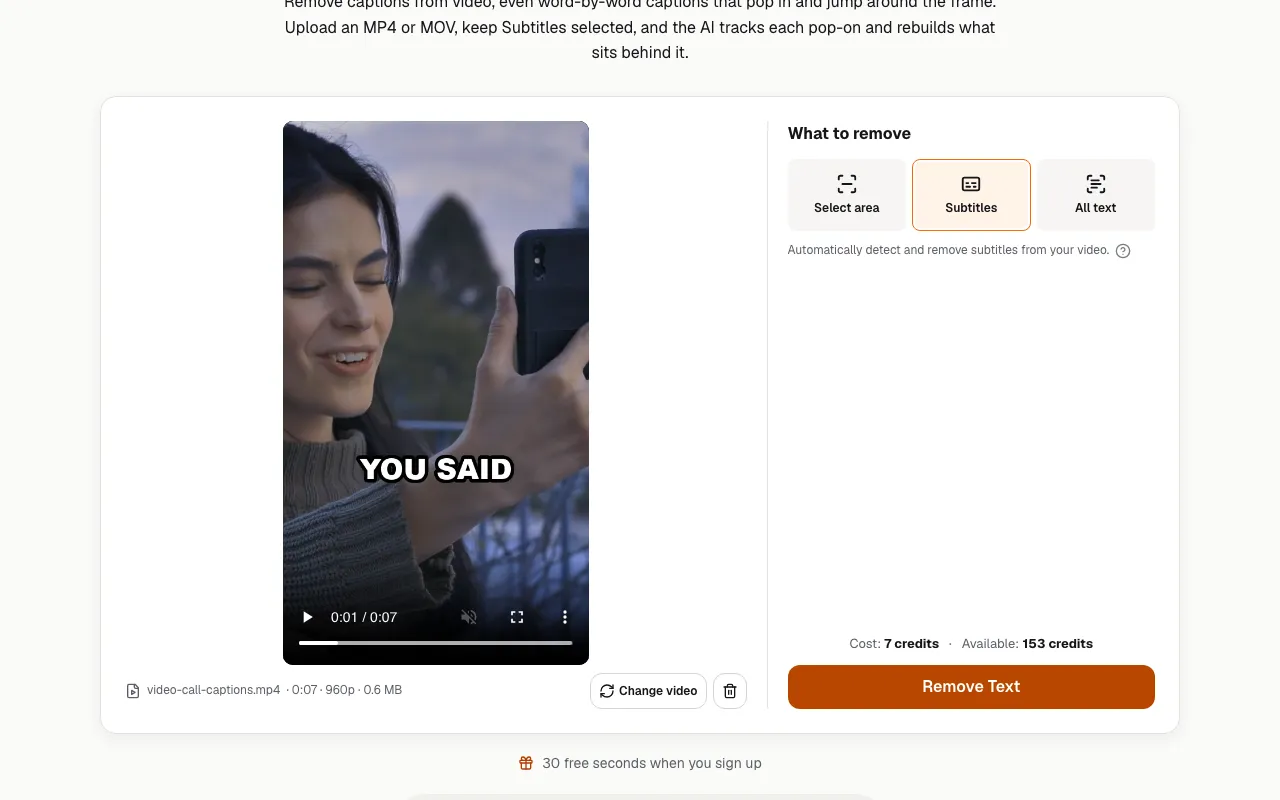
Click Remove Text. You sign in at this point if you haven't yet; the clip you chose is kept. The cost, 1 credit per second of the clip, is shown before you start and deducted when processing starts. If your balance is too low, the button opens the plans and credit packs instead. Processing takes a few minutes for a short clip and can take 10–15 minutes for a 30–60 second one. You can close the tab and pick the result up later under My videos, and if a job fails, its credits go back to your balance automatically.
Step 3: Download and import the clean clip back into CapCut
Review the result, download it, and drop it back on your CapCut timeline. Add new captions or text on top as normal. You get an MP4 at the same resolution as your upload, up to 1080p, so a 9:16 clip comes back 9:16 with nothing cropped. A 4K export comes back as 1080p.

The illustration below shows the kind of clip this is for, not a processing result: a vertical video with CapCut-style pop-on captions, one or two words at a time, some highlighted in yellow and one jumping higher in the frame. The After side is the clean source footage.
When the text won't come out cleanly
Whichever tool you use, AI only estimates the hidden background. Expect traces or altered detail when:
- Captions jump around and scale up for emphasis, as many CapCut caption styles do. Each new position is a new area to rebuild.
- The edit cuts on every beat. Little steady footage is left around each caption.
- Text covers a face, hands or a detailed texture. That detail is made up, not recovered.
- The clip was downloaded from an app. It is already compressed and may carry a platform watermark, which this tool does not remove. Your original CapCut export works better.
Process the hardest few seconds first, before you commit a full edit.
Related tools and guides
- Remove captions from video: word-by-word captions with bold outlines
- Erase words from a video: one title, name tag or date
- Remove text from TikTok videos edited in CapCut before you repost
- How to remove text from a video: every method compared
Sources
- CapCut, How to remove objects from video online for free (AI Remove workflow in CapCut desktop), checked November 2026.
- Our own test: CapCut 9.7.1 for macOS, free account, November 6, 2026 (AI Remove location and subscription prompt).
- CapCut, Effortlessly remove text in video (crop and freeze-frame cover methods), checked November 2026.
FAQ
Does CapCut remove text from video?
Text CapCut created can be deleted from the timeline before you export, for free. For text burned into an imported video, the desktop editor has AI Remove, where you brush over what you want gone and CapCut rebuilds the area. In our test of CapCut 9.7.1 for macOS (November 2026), AI Remove was available only to Pro subscribers and cost 70 credits for one 7-second clip. Without a subscription you can still crop, cover or blur the text.
How do I remove auto captions in CapCut?
Open the project, select the caption track on the timeline and delete it, then export again. If you only have the exported video and the captions are visible in it, they are burned in and deleting a track is no longer possible.
Can I remove text from a CapCut template video?
If you are editing the template in CapCut, the text is usually an editable field you can clear or replace. If you downloaded a finished template video, its text is burned into the picture.
Why is there a blurry box where my text was in CapCut?
Blur and mosaic effects hide text by smearing the area instead of rebuilding the background, so the patch stays visible. To make the text disappear without a patch, use a tool that rebuilds the background, such as AI Remove in CapCut desktop or a dedicated video text remover, and check the result where things move behind the text.