How to Remove Text From a Video (2026 Guide)
Five ways to remove text from a video, from deleting the text layer to AI background reconstruction, and how to pick the right one for your clip.
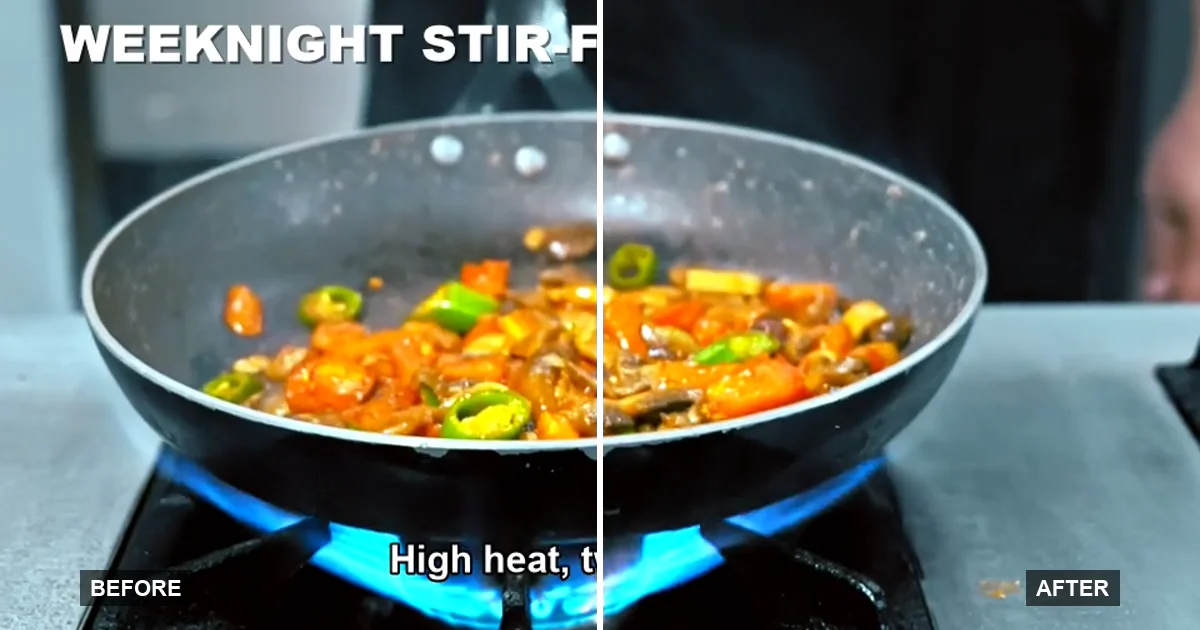
Whether you can remove text from a video, and how cleanly, depends on what kind of text it is. If the text is still a layer in an editing project, or a subtitle track you can switch off, you can remove it without touching the picture at all. If it is burned into the picture, your options are a clean copy of the video, cropping, covering, or having AI rebuild what was behind the text, and a rebuilt area is an estimate whose quality depends on the background. Below are all five methods, in the order you should try them, plus a step-by-step for the AI one.
Already sure the text is burned into the picture? Remove text from video online with a short test clip first, then come back here if the result isn't what you need.
First, find out what kind of text you have
Every piece of text in a video is one of two things:
- A separate layer. Titles in an editing project, captions you can toggle in a player, an
.srtfile next to the video, or a subtitle track inside the MP4. The picture underneath is intact, so you just turn the layer off. - Part of the picture. Text that was exported into the frames: TikTok and Reels captions after you save the clip, a title baked into a downloaded video, hardcoded subtitles. The pixels behind it no longer exist in the file.
The quick test: turn off every subtitle and CC option in your player. If the text disappears, it was a layer. If it stays, it is in the picture. Our guide to what hardcoded subtitles are covers this check in more detail, including how to inspect the file with ffprobe.
Method 1: Delete the text layer, or get a clean copy
If you made the video and still have the project in CapCut, Premiere Pro, iMovie, DaVinci Resolve or any other editor, open it, delete the text or caption track, and export again. If you didn't make the video, ask whoever did for a version without text. These are the only ways to get the original picture back exactly, so it is worth digging out an old project file or sending that message before you try anything else.
Method 2: Turn off or strip the subtitle track
If the text is a subtitle track, you don't need to edit anything: switch it off in the player. To produce a file without it, export from your editor with captions disabled, or strip the subtitle streams with ffmpeg without re-encoding:
ffmpeg -i input.mp4 -map 0 -map -0:s -c copy output.mp4
Method 3: Crop the text out
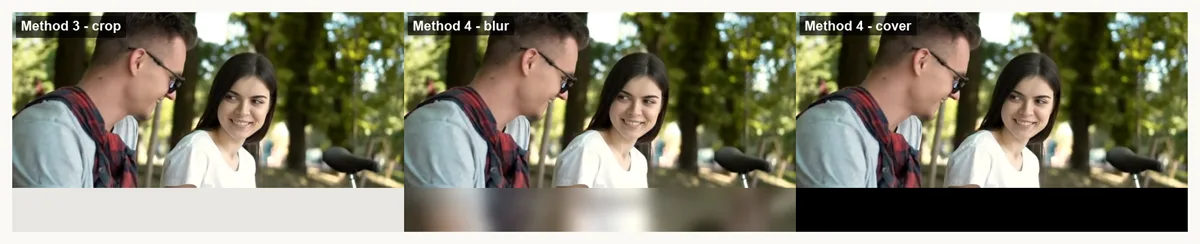
When the text sits in a strip at the edge of the frame, such as subtitles at the very bottom or a channel name in a corner, cropping removes it completely. You lose that part of the frame, and the aspect ratio changes unless you scale the video back up. This fails as soon as the text overlaps the subject.
In any editor, select the clip and use its crop tool to drag the bottom edge up past the text. With ffmpeg, this keeps the top 80% of the frame and drops the bottom 20% (change 0.8 to fit your text; the trunc part keeps the height even, which the H.264 encoder needs):
ffmpeg -i input.mp4 -vf "crop=iw:trunc(ih*0.8/2)*2:0:0" -c:a copy output.mp4
Method 4: Cover it with a blur, mosaic or sticker
Most editors can put a blur, a mosaic, a colored bar or a sticker over a region: add the effect or shape on a layer above the clip and size it to the text. The text becomes unreadable, but the patch is obvious, and it draws more attention to that spot than the text did. It is quick and fine for internal clips; it rarely looks good enough to publish.
With ffmpeg, these blur the bottom 20% of the frame, or cover it with a black bar:
# Blur the bottom 20%
ffmpeg -i input.mp4 -filter_complex "[0:v]crop=iw:ih*0.2:0:ih*0.8,boxblur=20[b];[0:v][b]overlay=0:H*0.8" -c:a copy output.mp4

# Cover the bottom 20% with a black bar
ffmpeg -i input.mp4 -vf "drawbox=x=0:y=ih*0.8:w=iw:h=ih*0.2:color=black:t=fill" -c:a copy output.mp4
Here is what each of these three commands does to the same clip with burned-in subtitles:
Method 5: Remove it with AI background reconstruction
AI inpainting removes the letters and fills the area with an estimate of the background, using the pixels around the text and the frames before and after it. Instead of blurring or cropping, it redraws the area, so the whole frame stays in the picture. The redrawn area is an estimate: on busy or fast-moving shots it can show smudges, soft patches or flicker. When there is no clean copy, it is usually the only way to make burned-in text over the middle of the picture disappear rather than just hide it.
Step by step: remove burned-in text with TextRemover.video
Step 1: Upload your clip
Open the online video text remover and upload an MP4 or MOV file, up to 60 seconds and 500 MB. Use the best copy you have: an original export gives a cleaner result than a copy that was downloaded and re-uploaded several times. You can upload and preview without an account.

Step 2: Choose what to remove
Pick one of three modes. All three cost the same, 1 credit per second of video.
- Subtitles finds subtitle and caption lines across frames, even when they change every few seconds. Start here for dialogue lines and word-by-word captions.
- All text scans the whole frame and removes every piece of text it detects, such as captions plus a title and a timestamp. It may also remove text you wanted to keep, like a sign in the scene.
- Select area rebuilds only the boxes you draw. Use it for one word, a name tag, a date or a fixed band. A box stays in place for the whole clip, so text that moves can slide out of it.

Step 3: Sign in and start processing
Click Remove Text. If you are not signed in yet, you are asked to sign in at this point; your clip and settings are kept while you do. The cost is 1 credit per second of the full clip, rounded to the nearest second, and it is shown before you start. Credits are deducted when processing starts. If your balance is too low, the button changes to Get more credits and opens the plans and credit packs instead.
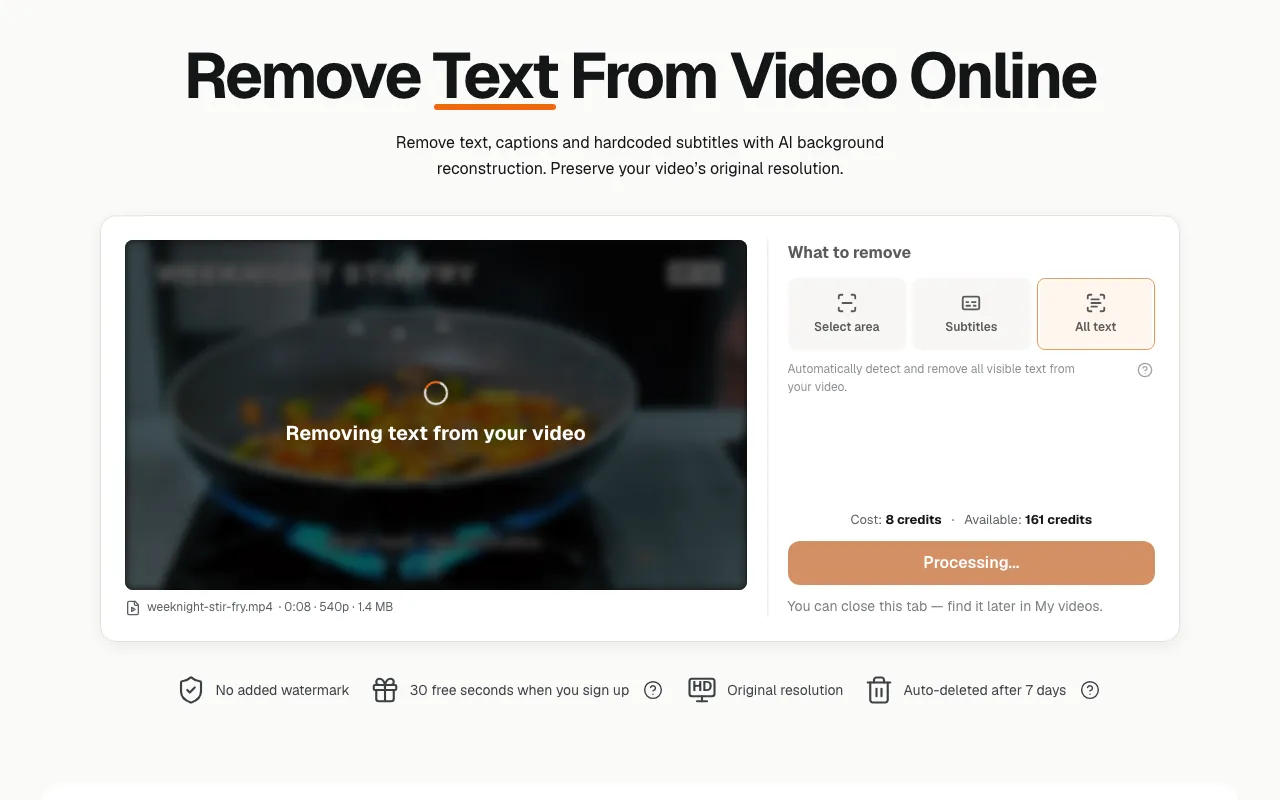
Processing takes a few minutes for a short clip and can take 10–15 minutes for a 30–60 second one. You don't have to wait on the page: close the tab and find the job later under My videos. If processing fails, the credits for that job are returned to your balance automatically, and you can try again or contact support with the task ID.
Step 4: Review and download
Watch the whole result rather than a single frame. Look at the moments where text appears, changes or crosses a moving subject. Download the clean video as an MP4 at the same resolution as your upload, up to 1080p. Uploads and results are deleted automatically 7 days after processing.

Before and after
The illustration below shows the kind of clip All text is meant for, not a processing result: a cooking clip with three kinds of burned-in text at once, a title in the top-left corner, an episode tag in the top-right and a caption line that changes halfway through. The After side is the clean source footage.
Which method should you use?
- You still have the editing project, or can get a clean copy: delete the layer and export again, or use the clean copy (Method 1).
- The text disappears when you turn subtitles off: it is a track; switch it off or strip it (Method 2).
- The text sits on a plain strip at the edge: crop (Method 3).
- You only need it unreadable, not invisible: blur or cover (Method 4).
- The text is burned in over the picture and has to disappear: AI removal (Method 5). Use Subtitles for changing lines, All text for text all over the frame, Select area for one fixed spot.
When AI text removal won't work well
AI rebuilds what it cannot see, so some clips come out better than others. Expect visible traces or altered detail when:
- The text covers a face, hands or fine texture. That detail is invented, not recovered.
- The letters are large or heavily outlined. A bigger area means more guessing.
- The edit cuts every second, or the camera moves fast. There is little steady footage to borrow from.
- The text moves and you used a box. A Select area box stays where you drew it; use Subtitles or All text for moving text.
- The clip is longer than 60 seconds or larger than 500 MB. Split it into shorter clips first. The result is an MP4 at the same resolution as your upload, up to 1080p, so a 4K upload comes back as 1080p.
- It's a platform watermark or interface element. This tool does not remove those.
The cheapest way to find out is to process the hardest 5–10 seconds of your clip first.
Related tools and guides
- Remove subtitles from video: burned-in dialogue lines
- Remove captions from video: word-by-word captions on Reels and Shorts
- Erase words from a video: one word, a name tag or a date
- Remove text from TikTok videos before you repost them
- How to remove text from a video in CapCut, including its AI Remove tool
Sources
- FFmpeg documentation, stream selection and negative
-map, used for stripping subtitle tracks without re-encoding. - FFmpeg documentation, ffprobe, for listing the streams inside a video file.
- FFmpeg filters documentation: crop, boxblur, overlay and drawbox, used in the crop, blur and cover commands.
FAQ
Can you remove text from a video without blurring it?
Yes. If the text is still a layer in your editing project, delete it and export again. If it is burned into the picture, AI inpainting tools rebuild the background behind the letters instead of blurring them. The result is an estimate of the hidden area, so check busy or fast-moving shots closely.
How do I remove text from a video online for free?
Free online options usually cover the text with a blur or crop it out. AI removal tools generally need credits. On TextRemover.video, eligible new accounts get 30 free seconds of processing at signup, valid for 30 days, which is enough to test a short clip; at most two new accounts per network each month receive it.
How do I remove text from an MP4 video?
MP4 is just the file format. What matters is whether the text is a subtitle track inside the MP4 (switch it off or strip it without re-encoding) or part of the picture (crop, cover, or remove it with AI). Upload the MP4 to an AI text remover if the text stays after you turn subtitles off.
Can you remove text from someone else’s video?
Only edit videos you own or have permission to edit. Removing text from a clip does not give you any rights to the footage.
Does removing text also remove a TikTok or platform watermark?
Not with TextRemover.video. It removes text and captions that are part of your video, not platform watermarks or app interface elements. Start from your original file, which does not have the watermark.