What Are Hardcoded Subtitles? How to Remove Them
Hardcoded subtitles are burned into the video picture, so you cannot switch them off. Learn how to tell them apart from soft subtitles and how to remove each kind.
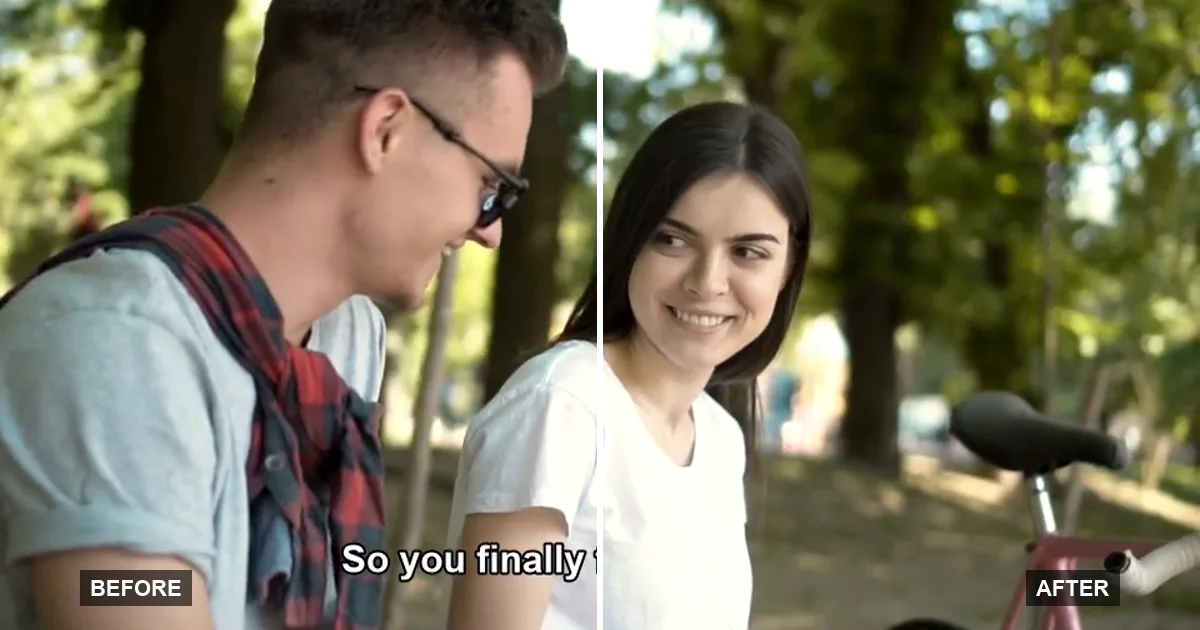
Hardcoded subtitles are subtitles drawn into the video picture itself. They don't disappear when you turn subtitles off, and there is no subtitle file to delete. You can crop them out, cover them, or try AI reconstruction, but none of these restores the original picture; only a copy of the video without them does. This guide explains how hardcoded subtitles differ from soft subtitles, how to check which kind you have, and which removal option fits.
Already know your subtitles are burned in? Remove hardcoded subtitles online with a short clip and see how your footage holds up.
Hardcoded vs soft subtitles
There are two ways to put subtitles on a video, and they behave nothing alike.
- Hardcoded subtitles (also called burned-in subtitles, hardsubs or open captions) are rendered into the pixels. Once the file is exported, the letters are no different from a sign or a face the camera filmed. Every viewer sees them, on every device, and they survive re-uploads, screen recordings and format conversions.
- Soft subtitles (also called softsubs, closed captions or a subtitle track) are stored separately from the picture, either in a separate file such as
.srtor.vtt, or as a subtitle stream inside the video container. Most are text with timings; some, like the PGS subtitles on Blu-ray and VobSub on DVD, are stored as images. Either way, the player draws them on top of the picture at playback time, which is why you can turn them on, off, or change their language.
A simple way to remember it: soft subtitles sit on top of the video; hardcoded subtitles are in the video.
Why "embedded subtitles" causes confusion
"Embedded" is used for both. Some people mean burned in. Others mean a soft subtitle track embedded inside an MP4, MOV or MKV file, which a player can still switch off. Before you go looking for a removal tool, find out which one you have.
Where hardcoded subtitles come from
- Social video editors (TikTok, Instagram Reels, CapCut) burn captions and text into the file when you save or export it.
- Fan subtitles and "hardsub" releases, made so the video plays the same everywhere.
- Foreign-language films and clips exported with subtitles already applied.
- Screen recordings of a video that had subtitles turned on: the recording captures them as pixels.
- Forced subtitles that someone flattened into the picture while re-encoding.
How to tell if your subtitles are hardcoded
Run these checks in order. The first one settles most cases.
- Turn subtitles off. Open the subtitle or CC menu in your player and choose Off. If the text disappears, it is a soft track. If it stays, it is almost certainly hardcoded.
- Look at the track list. In VLC, open Subtitle → Sub Track. In most other players, look for a subtitle, CC or language menu. No subtitle track listed plus text on screen means the text is in the picture.
- Check the file itself. If you are comfortable with a terminal,
ffprobelists the streams inside a file. This command prints any subtitle streams, and prints nothing when there are none:
ffprobe -v error -select_streams s -show_entries stream=index,codec_name -of csv=p=0 input.mp4
How to remove soft subtitles (no AI needed)
If the subtitles turned out to be a track, removing them costs nothing and changes nothing else in the video:
- While watching: set subtitles to Off in the player.
- When exporting from an editor: disable or delete the caption track before export.
- To strip the track from the file:
ffmpegcan copy the video and audio without re-encoding and leave every subtitle stream out:
ffmpeg -i input.mkv -map 0 -map -0:s -c copy output.mkv
Do this first. Paying a tool to "remove" subtitles that were never in the picture is a common and avoidable mistake.
How to remove hardcoded subtitles
Once you are sure the subtitles are burned in, you have four options. Only the first gives you the original picture back:
- Find a clean copy. Re-export from the original project, or ask whoever made the video for a version without subtitles.
- Crop them out. Works when they sit in a strip at the very bottom, such as letterboxed films, at the cost of part of the frame.
- Cover them with a blur, mosaic or bar. The words become unreadable, but the patch is obvious.
- Rebuild the background with AI. The letters are removed and the area is redrawn from the surrounding pixels and nearby frames. Nothing is cropped, but the redrawn area is an estimate and can look soft or smudged on busy shots.
Our guide to removing text from a video walks through each of these with commands and screenshots. What is specific to subtitles is how they change: a new line every few seconds. A fixed box would have to cover every possible line, so for dialogue, use a tool that finds the lines frame by frame. On TextRemover.video that is Subtitles mode: upload an MP4 or MOV clip, keep Subtitles selected and start processing, with no boxes to draw.
The illustration below shows the kind of clip Subtitles mode is built for, not a processing result: a park conversation with three burned-in dialogue lines that change every few seconds. The After side is the clean source footage.
Where hardcoded subtitles are hardest to remove
Three things about subtitles in particular make a clean result harder:
- They sit over faces and hands. Dialogue subtitles often cross a speaker's chin, mouth or gesturing hands. What was behind them is estimated, so those details may come out slightly different.
- Line changes and scene cuts. Each new line and each cut is a moment where traces or flicker can appear. Check the result there first.
- Fansub-style styling. Large fonts, thick outlines and drop shadows widen the area that has to be rebuilt.
Try a short section with these moments first. If it holds up there, the rest of the video usually will.
Related guides and tools
- Remove burned-in subtitles from video with Subtitles mode
- Remove captions from video, including word-by-word social captions
- How to remove text from a video: every method compared, from deleting a layer to AI removal
Sources
- W3C, WebVTT: The Web Video Text Tracks Format, a text-based subtitle format players render on top of the video.
- FFmpeg documentation, ffprobe, for listing the subtitle streams inside a file.
- FFmpeg documentation, stream selection and negative
-map, used above to drop subtitle streams without re-encoding.
FAQ
What does hardcoded subtitles mean?
Hardcoded subtitles are text drawn into the video frames themselves. They are part of the picture, like anything the camera filmed, so a player cannot hide them, and there is no subtitle file to delete.
Are hardcoded and burned-in subtitles the same thing?
Yes. Hardcoded, burned-in, hardsubs and open captions all describe subtitles that were rendered into the picture. "Embedded" is the ambiguous one: it can also mean a separate subtitle track stored inside an MP4 or MKV file, which you can switch off.
Can you turn off hardcoded subtitles?
No. Turning them off only works for soft subtitles. If the text stays on screen after you disable every subtitle and CC option, it is hardcoded, and the only ways to get rid of it are cropping, covering, AI reconstruction, or finding a copy of the video without them.
How do I know if subtitles are hardcoded?
Turn off subtitles in the player, then check whether the text is still there. Also open the subtitle or audio menu: if it lists no subtitle track and the text stays, it is burned in. A media inspector such as ffprobe will show no subtitle stream for a file whose only subtitles are hardcoded.
Can you remove hardcoded subtitles without losing quality?
Not perfectly. Cropping removes part of the frame, blurring leaves a visible patch, and AI reconstruction estimates the hidden background instead of recovering it. On plain or slow-moving backgrounds the AI result can be hard to spot; on busy, fast-moving shots you should expect some artifacts.